
Tasks
Tasks are the things you need to get done - your actions. In groovmint, every task you complete that's linked to a Groov contributes to that Groov's Momentum Score - so the simple act of ticking things off becomes a meaningful measure of your progress.
Creating a new task
To create a new Task, click the New Task button. You'll find it above the Task component , or in the Quick Access menu at the top of the dashboard.
Task page
When you open a task, you'll see a few things at the top of the task page straight away:
Press Done
The button to mark your task as complete. Press it when you're done and groovmint will update your Momentum Score automatically
Alert
A colour-coded indicator showing urgency (more on this below)
Due
Whether the task is currently due
Days Due
How many days until the deadline, or how many days overdue it is
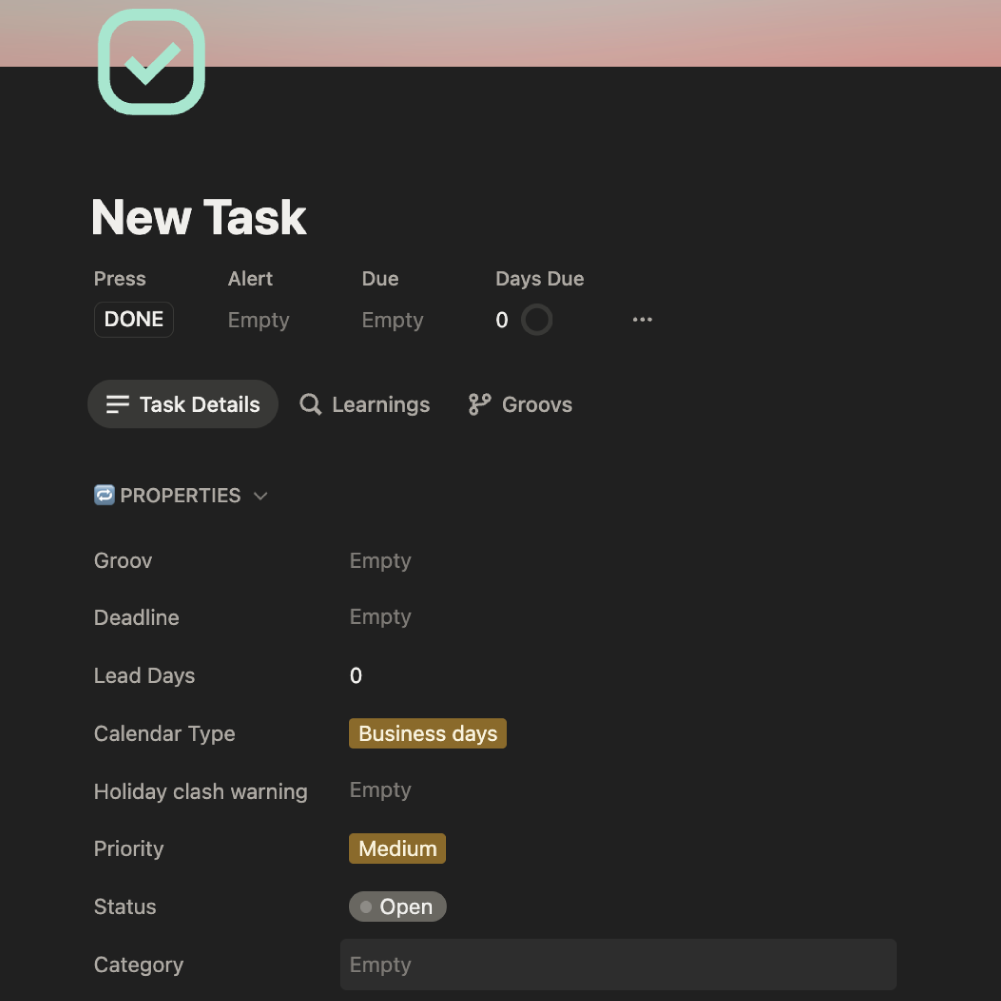
There are also three tabs:
Task Details
The button to mark your task as complete. Press it when you're done and groovmint will update your Momentum Score automatically
Learnings
Shows any Learning notes linked to this specific task, so all relevant knowledge is connected
Groovs
See which Groov this task is linked to
Setting up your task
Under the Task Details tab, you'll find the Properties section. Here's what you should fill in for the task:
Groov
Link this task to a Groov. This is the most important step - without it, completing the task won't contribute to any Momentum Score.
Deadline
Set a due date for the task. Once set, groovmint will start counting down the days and trigger alerts as the deadline approaches.
Lead days (optional)
How many days before the deadline you want to be alerted and for the task to come into Focus. For example, if you set 3 lead days and your deadline is Friday, groovmint will display the task earlier as if the deadline is Tuesday.
Calendar Type
Choose how groovmint counts the days to your deadline:
⇨ Business days: counts only Monday to Friday, ignoring weekends
⇨ Calendar days: counts every day including weekends
Priority
Set the importance of the task. Options are:
⇨ Critical - urgent and important, needs doing now
⇨ High - important, should be done soon
⇨ Medium - useful, but not time-sensitive
⇨ Low - nice to do when there's time
Priority affects how tasks are sorted and highlighted in your dashboard - tasks with higher priority will surface first so you're always working on what matters most.
Status
Reflects where the task is in its lifecycle:
⇨ Open - ready to be worked on
⇨ In progress - actively being worked on
⇨ Backlog - parked for later
⇨ Complete - done
Status has no effect on the deadline, alert, or Momentum Score.
Category (optional)
Assign a category to help you group and filter tasks across your dashboard.
Automatic calculations
The following values are calculated automatically by groovmint.
Days due
Calculated from your deadline
Alert
Updated automatically based on your deadline and lead days
Holiday warning clash
If any of your task deadlines or recurring dates fall on a holiday, groovmint will flag it with a warning directly on the task. See the Settings section of this guide for how to manage your holidays.
Task Momentum
Recorded automatically when you mark each task as DONE
Task views
The Task component has several views across the top, each giving you a different lens on your workload. The primary operational views are:
Focus
Your most urgent tasks right now. These are tasks with a Red or Purple alert, sorted to the top so the most critical tasks are always the first thing you see. If something is in Focus, it needs your attention today.
Next
Tasks that are coming up soon but aren't urgent yet. These have an Orange or Yellow alert, meaning they're approaching their deadline within the next few days. A good place to look when you're planning ahead.
Future
Everything else that's on the list but not pressing. White and Grey alert tasks live here - they have either no deadline set, or a deadline that's still comfortably away.
Alerts
The alert on each task is calculated automatically by groovmint based on your Deadline, your Lead Days setting, the task's priority, and whether the task is complete. You never set it yourself - it updates in real time and drives how your tasks are sorted across the Focus, Next, and Future views.
The number of days shown for each alert level are added to your Lead Days value. So if you've set five Lead Days, Yellow would trigger when your deadline is 8 days away.
Here's how the colour is assigned, in order of priority:
🟢 Green
Task is complete
🔴 Red
Critical priority, or the deadline is today or overdue
🟣 Purple
Deadline is in 1 day - act soon
🟠 Orange
Deadline is 2 days away - coming up
🟡 Yellow
Deadline is 3 days away - on the horizon
⚪ White
Deadline is within 7 days - not urgent, or no deadline set
🪙 Grey
Deadline is comfortably far away
Tasks are sorted by urgency in this order: 🔴 Red → 🟣 Purple → 🟠 Orange → 🟡 Yellow → ⚪ White → 🪙 Grey → 🟢 Green (completed tasks sort to the bottom).
This sort order is also what determines which view a task appears in - Focus shows the most urgent (Red and Purple), Next shows what's approaching (Orange and Yellow), and Future shows everything else (White and Grey).
Momentum points
Every task you complete that's linked to a Groov earns 1 momentum point for that Groov. Priority has no bearing on how many points you earn - what matters is simply that you're getting things done.
Activity
Points earned
Task complete
1 point
Habit log
1.5 points
Learning log
0.5 points
Get the most out of tips
- Always link to a Groov. A task without a Groov won't contribute to your momentum. It takes two seconds and makes all the difference to your charts.
- Use Lead Days. Deadlines sneak up on you. Even setting 1-2 lead days gives you the buffer you need to start the task early.
- Don't overthink priority. If everything is Critical, nothing is. Save Critical for the things that genuinely need to happen today or have real consequences if missed.
- Mark tasks Done to keep them. Completed tasks are your record of progress and your history and momentum data stay intact.